Digital signage (DID) content management system · CMS
Local or internet — both. The hybrid digital signage solution you can run from anywhere, MediaSign
In the same building, no internet needed; far-away displays run over the internet. One console to create, schedule, monitor and report on Windows PCandAndroid displays.
Built on 17 years of field experience and our own technology.
MediaSign is a signage CMS and DID management solution that lets you create, schedule, play out and monitor the content on your digital signage (DID) displays. As a DID playout program that runs multiple displays from one console, it brings together everything the field needs.
Local or remote — both work
In the same office or building, manage everything without the internet; displays at several far-away locations can also be managed remotely over the internet. If the connection to the server drops, displays keep playing the schedules and content they have already received.
No monthly fee, perpetual license
A CMS you install directly on a server PC. It is a perpetual license purchased once per display, so there is no recurring monthly usage fee.
Windows PC and Android in one console
Manage PC clients and Android devices together on a single screen.
Flexible screen layouts
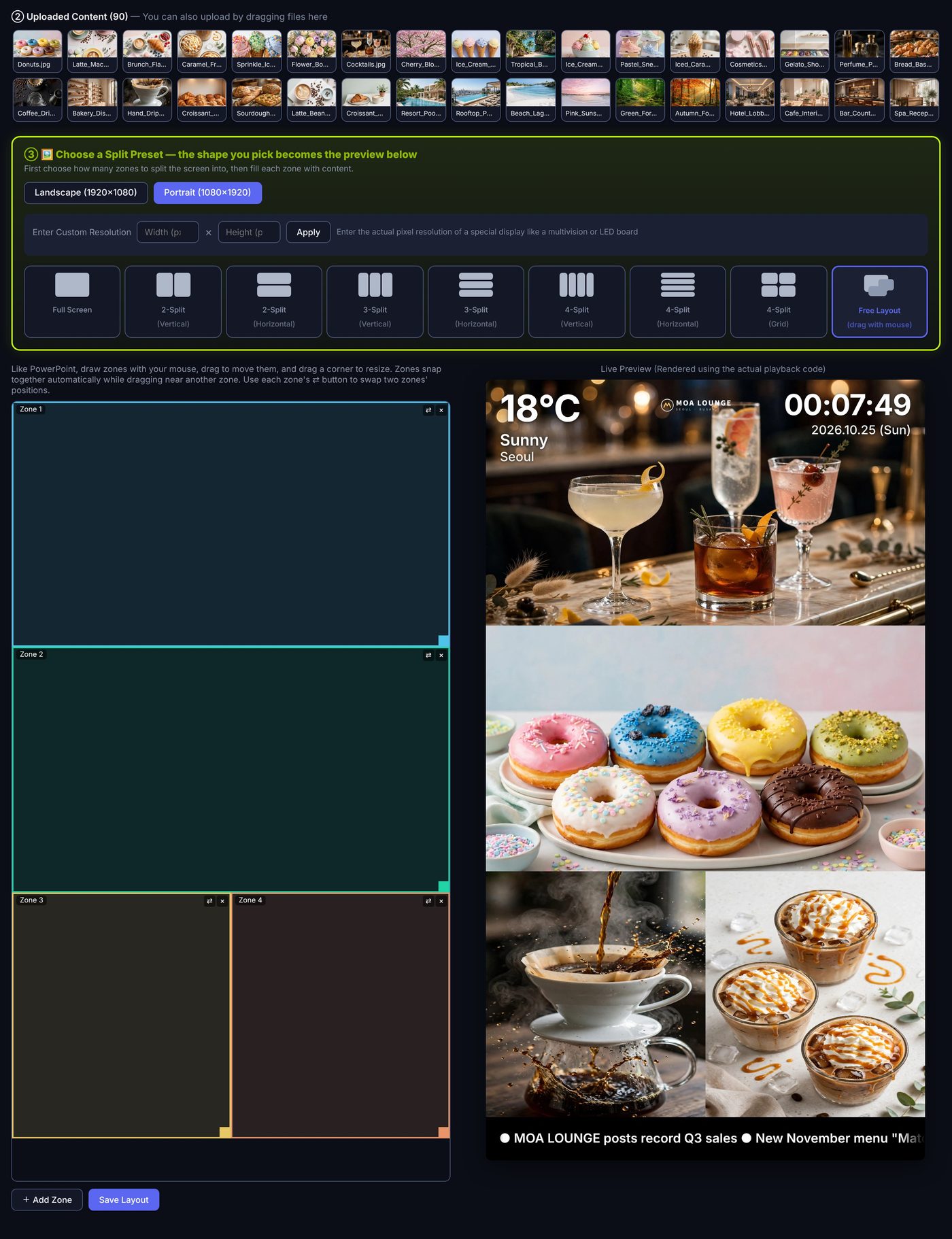
Full screen · 2/3/4 split · 2×2 · free layout
Landscape or portrait; enter any resolution for LED signs
Weather, clock and logo widgets
Check a live preview before sending
Layers of safeguards
Restarts itself if it stops
Keeps playing received schedules and content if the server drops
Emails the administrator when a device stops responding
Automatic backup every 6 hours; restore to the point you choose
Scheduled automatic restarts · playback log
Proof-of-play reports
See play counts and play time per content by period and export to CSV. Useful for reporting to advertisers and tenants. It can be used to run digital signage and digital notice boards, and to manage ad playout, at companies, public institutions, schools and hospitals.
AND MORE
And more
From creating screens to scheduling, on-site operation and proof of play. Everything you need, summarized in 32 features.
All you need is a browser — it opens on a PC, laptop or smartphone. No separate installation is required.
👆 Tap a tab to switch screens
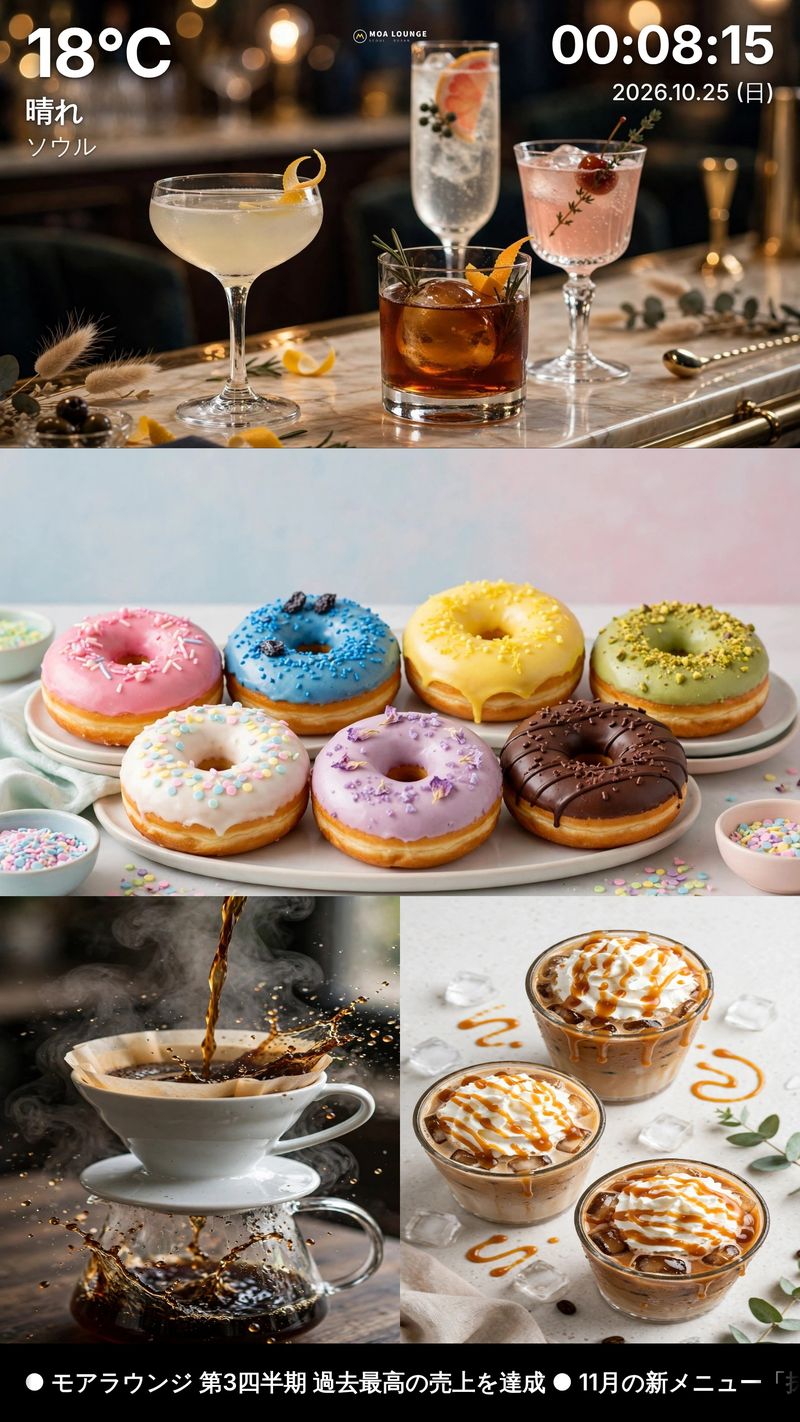
Draw zones with the mouse and the screen becomes yours. Mix portrait and landscape zones freely, put content in each zone, add weather, clock and logo widgets and a bottom ticker, and check it in a live preview. Landscape/portrait screens and custom LED-sign resolutions are supported.
Schedule by painting a timetable. Paint screens onto a weekday × time grid, force playback with “Play Now” when needed, or add exceptions for specific dates only.
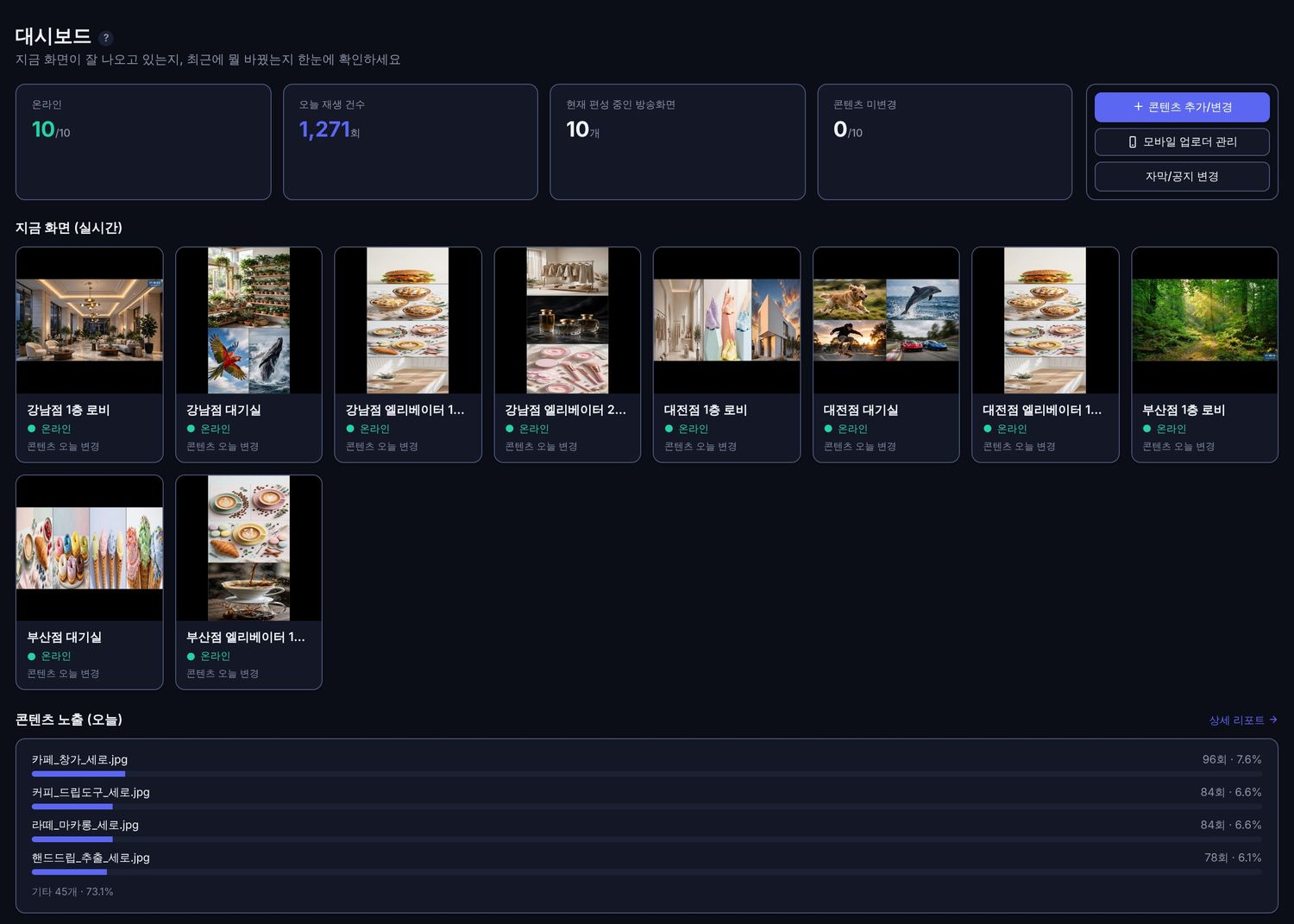
See everything at a glance. The dashboard shows the number of online displays, today’s play count, each display’s live screen and content exposure ranking.
한국어English日本語
The console is available in 한국어 · English · 日本語. Switch with the language button at the bottom left. Text shown on the displays is whatever you enter yourself.
※ All screens use sample (demo) data, not real customer screens. They may differ depending on version and environment.
GET STARTED
Four steps. Fifteen days to try it properly.
Try it fully for 15 days, then decide. If it isn’t right for you, you don’t have to buy.
Request a trial or consultation
Call us or use the form below. We will guide you according to your environment.
Get the installers
We will guide you to the installers for the server, Windows PC displays and Android.
Install and try
Install the server first, then the displays. Try every feature for 15 days.
License activation, then perpetual use
If you like it, activate a license per display. Activation can be verified without the internet.
Made by a company that has installed digital signage for over 17 years
Media City is a company that has installed displays on site, from elevator DIDs to LED displays. We built MediaSign from that field experience.
Elevator DIDLED displaysMulti-visionWall-mounted DIDHospital DID
We have delivered displays to 2,000+ sites, including public offices, hospitals, universities, hotels and corporate headquarters. You can use MediaSign with displays you already run, and also when installing it on another vendor’s equipment.
Places where Media City has installed digital signage
Government · public
Government Complex SejongNational Election CommissionNational Human Rights Commission of KoreaNational Pension ServiceNational Health Insurance ServiceIncheon International Airport Corporation
Finance · corporate
Samsung SDSSKHyundai MotorHyundai SteelLotte Home ShoppingKorea Securities Depository
Hospitals · education
Korea University HospitalSeoul Veterans HospitalSeoul National UniversityPusan National UniversityUniversity of SeoulKorea Institute of Energy Technology (KENTECH)
Hotels · culture
Grand Walkerhill SeoulMercure AmbassadorHanwha Hotels & ResortsSejong Center for the Performing ArtsKBSSeoul Arts Center
and 2,000+ more sitesThese names are only some of them; we have installed at many other places as well.
FAQ
Frequently asked questions
What kind of software is MediaSign?
It is a digital signage CMS and a DID management and playout program. You create screens, schedule, play out and monitor from a single console.
Is there really no monthly fee?
MediaSign is a perpetual license per display. It is not a subscription, so there is no monthly fee. Pricing and payment methods are explained during consultation.
Is it installed software or a cloud service?
It is installed software that you run on a server PC (on-premises). Managing over the internet is a convenience feature and may be changed or discontinued.
How does the 15-day trial work?
You can try every feature for 15 days. The trial period is counted separately for each display, starting from the day each one first connects to the server.
When the trial ends, that display keeps playing what it last broadcast, and new schedules take effect after license activation.
What server PC do I need?
The server is installed on a 64-bit Windows PC, and installation is done with an administrator account. The installed size is about 150MB. We recommend keeping the server PC on with sleep mode turned off. You can also run the server and a display on the same PC.
Details on supported Windows versions and recommended specifications are confirmed during consultation.
Which Android devices can I use?
We recommend commercial or embedded signage devices for 24-hour operation with Android 9.0 or later, 2GB or more of memory (recommended) and H.265 hardware decoding. You install the dedicated app (APK) on the device and use it as a display.
Installation, auto-start and remote control may behave differently depending on the device maker and firmware. We recommend checking on your own device during the 15-day trial.
Is there anything I should know about Android devices?
Android TV set-top boxes can be installed and run, but in some cases the app does not start automatically when power is applied, so we do not recommend them for signage.
Remote power-off and reboot work only on rooted devices. To keep the device from going to sleep or turning its screen off, set the device’s sleep setting to “always on”.
Does it work without the internet?
Within the same office or building you can manage without the internet. Displays play content they have already received from the server, so if the connection drops briefly they keep playing the schedules and content already received. New schedules and remote control apply once the connection is restored.
Live content such as web pages and YouTube is shown on displays that have an internet connection.
Can I manage displays that are far away?
When you turn on the optional “Manage over the internet” feature, you can reach the management console from outside while the server PC is on and connected to the internet. File uploads on this route are limited to 100MB per file; there is no limit on the same network.
Response speed can vary with your network, so please check it yourself during the 15-day trial. This feature is provided for convenience and may be changed or discontinued in the future.
How do I set up failure alert emails?
When a device stops responding, we email the administrator. The last-seen time and the resource status just before it are shown together. To send mail you need the SMTP settings of your mail service.
What content can I play?
You can place video, image and PDF files, plus web pages, streams and YouTube addresses, in the zones of a screen. Bottom tickers and emergency notices are also supported.
External feeds (RSS/JSON) are registered by the user, and the user is responsible for the copyright, terms of use and availability of those sources. The user is also responsible for the copyright of uploaded content.
How do I buy?
After the trial, send us a license request code for each display and Media City will issue a license activation code. Pricing and payment methods are explained during consultation.
VPS · cloud server
Want to manage many branches from one place?
If you are considering nationwide, centralized management for a franchise or similar, please take a look.
1✔ Built into MediaSign
For a few sites, manage over the internet
No separate server or VPS — just turn it on in Settings.
Reach the management console from home, a business trip or headquarters at the yourname.mcdid.net address. No router settings or fixed IP needed. (File uploads up to 100MB per file; no limit on the same network.)
2Set up by you
For many branches, use your own cloud server (VPS)
Rent a VPS from a cloud provider that offers 64-bit Windows servers and install the MediaSign server on it. One server then runs displays at many locations, with no office PC needed.
Rent a 64-bit Windows Server VPS
Allow the server port (default 8080) in the provider’s and Windows firewalls
Install with the MediaSign server installer and create an administrator account
Enter the server address in each display app
※ The MediaSign server is for 64-bit Windows only. There is no Linux version.
3
Nothing to set up at each branch
Displays connect to the server first, so you do not need to change routers or firewalls at the branches. If the server drops, displays keep playing the schedules and content they have already received.
A VPS is a service you rent and operate yourself from a provider. Media City does not arrange, install or operate VPS for you, nor provide support for it. Because it depends on your environment, we recommend it for IT staff with server administration experience. If you leave a server open on the internet, set a strong login password.
An electronic way of showing video, images and information on displays for guidance and advertising. It is used in shops, lobbies, hospitals, public offices, elevators and many other places.
DID (Digital Information Display)
A term for information displays; in Korea it is used with almost the same meaning as digital signage.
CMS (content management system)
Software that creates the content to show, schedules it on a timetable, sends it to many displays and monitors their status. MediaSign is exactly this kind of software.
You may also search for
Digital signage CMSDID CMSDID management softwareDigital signage softwareSignage programSignage content managementContent scheduling softwareAndroid signageWindows signage softwareSignage without subscriptionHospital DID softwareElevator display softwareHybrid signage CMS
CONTACT
Request a consultation or a 15-day trial
We will contact you at the details you leave. A phone call is the fastest way.